12 AI Video Mistakes That Kill Your Results (And Exact Fixes)
Your AI video looks amateur. The motion is janky, characters morph mid-shot, and the final clip barely resembles what you asked for. You are not alone.
Most AI video mistakes happen before the model renders a single frame. The difference between a usable clip and garbage often comes down to twelve specific errors and how you fix them.
This guide breaks down each mistake with before-and-after examples and exact technical fixes you can apply immediately.
Mistake 1: Vague One-Line Prompts
The single biggest cause of bad AI videos is asking the model to guess what you want.
Bad prompt: "make a cool video"
Good prompt: "Close-up shot of a matte black water bottle on wet stone, condensation forming on surface, slow camera push-in, soft studio lighting, shallow depth of field"
The difference? Specificity. AI video models need clear direction on subject, action, camera movement, lighting, and style.
Fix: Use the formula Subject + Action + Scene + Camera + Lighting + Style. Every prompt should answer: what appears, what moves, where it happens, how the camera behaves, and what it looks like.
Mistake 2: Asking One Prompt to Do Too Much
You write: "A woman walks into a cafe, sits down, opens her laptop, and starts typing while drinking coffee."
The model gives you: a blurry mess where the character changes appearance three times and the laptop materializes mid-scene.
Why it fails: Current AI video models handle 5-10 seconds of continuous motion. Cramming four separate actions into one generation overwhelms the temporal consistency algorithms.
Fix: Break complex sequences into separate clips: - Clip 1: "Woman walks through cafe door, medium shot" - Clip 2: "Woman pulls out chair and sits, close-up" - Clip 3: "Hands open laptop on wooden table, macro shot" - Clip 4: "Woman typing on laptop while holding coffee cup, medium close-up"
Chain the clips in post-production. Each generation focuses on one clear action.
Mistake 3: Ignoring Aspect Ratio
You generate a beautiful vertical video for Instagram Reels. When you upload it, the top of the subject's head is cut off and the bottom shows empty space.
The problem: Most AI video generators default to 16:9 (horizontal). If you do not specify aspect ratio, you get landscape footage that Instagram crops into portrait orientation.
Fix: Always specify aspect ratio in your prompt: - Instagram Reels / TikTok: "vertical 9:16 format" or "portrait orientation, 1080x1920" - YouTube: "horizontal 16:9 format" or "landscape, 1920x1080" - Social media square posts: "1:1 square format, 1080x1080"
Add this to the beginning or end of every prompt.
Mistake 4: Using Default Low Resolution
Your AI video looks fine on your phone. On a laptop screen, it is blurry and pixelated.
What happened: Many AI video tools default to 720p or lower to save computational resources and speed up rendering. Upscaling a 480p generation to 1080p introduces blur and artifacts that no post-processing can fix.
Fix: Always generate at the highest native resolution your tool supports: - If the tool offers 1080p native generation, use it even if render times are longer - Add "1080p high resolution" or "4K" to your prompt - Never rely on upscaling as your primary quality control—generate high-res from the start
For finished videos destined for large screens or professional use, 1080p is the minimum acceptable quality in 2026.
Mistake 5: No Reference Image for Character Consistency
You generate three clips of the same character. In clip one, she has brown hair. In clip two, blonde. In clip three, the face structure changes completely.
The cause: Text-only prompts force the model to hallucinate visual details. Without a reference image, character appearance drifts across generations.
Fix: Use image-to-video instead of text-to-video when character consistency matters: 1. Generate or provide one reference image of your character 2. Use that same image as input for every subsequent generation 3. In your text prompt, repeat identical character traits: "same woman from reference image, wearing blue sweater, shoulder-length dark hair"
Repeating "same character from reference image" in every prompt reinforces continuity.
Mistake 6: Skipping Negative Prompts
You generate a product demo video. The model adds random text overlays, distorts the product label, and introduces motion blur you did not ask for.
The problem: AI models often add elements you did not request—unwanted text, sudden camera jumps, visual artifacts.
Fix: Use negative prompts to explicitly exclude unwanted elements: - "avoid text overlays" - "no sudden camera movements" - "avoid distortion" - "no motion blur" - "keep product label unchanged"
Most advanced AI video generators support negative prompts. Add them to every generation where precision matters.
Mistake 7: Conflicting Camera Directions
Your prompt says "zoom in and pan left." The model produces a shaky, disorienting clip that does neither movement well.
Why: Combining multiple camera movements in one shot creates conflicting instructions. The model tries to execute both and fails at clarity.
Fix: One camera movement per clip: - Good: "slow push-in toward subject" - Good: "pan left across cityscape" - Bad: "zoom in while rotating around subject"
If you need complex camera work, break it into separate clips or stick to one primary movement per shot.
Mistake 8: Overloading with Motion
You describe a bustling city scene: "cars driving, people walking, birds flying, trees swaying, flags waving in the wind."
The result: visual chaos, flickering, and inconsistent motion where nothing looks natural.
The cause: Too many simultaneous motion elements overwhelm temporal consistency. Each moving element multiplies the computational complexity.
Fix: Limit motion to one or two primary elements: - "City street with cars driving past in background, camera static" - "Single person walking across frame, cityscape blurred behind"
Keep it simple. More motion does not mean better video—it means more opportunities for the model to fail.
Mistake 9: Expecting AI to Replace Editing
You generate a clip, export it, and publish immediately. Viewers notice abrupt starts, awkward endings, and no audio sync.
Reality check: AI generates raw footage, not finished videos. Professional results require post-production.
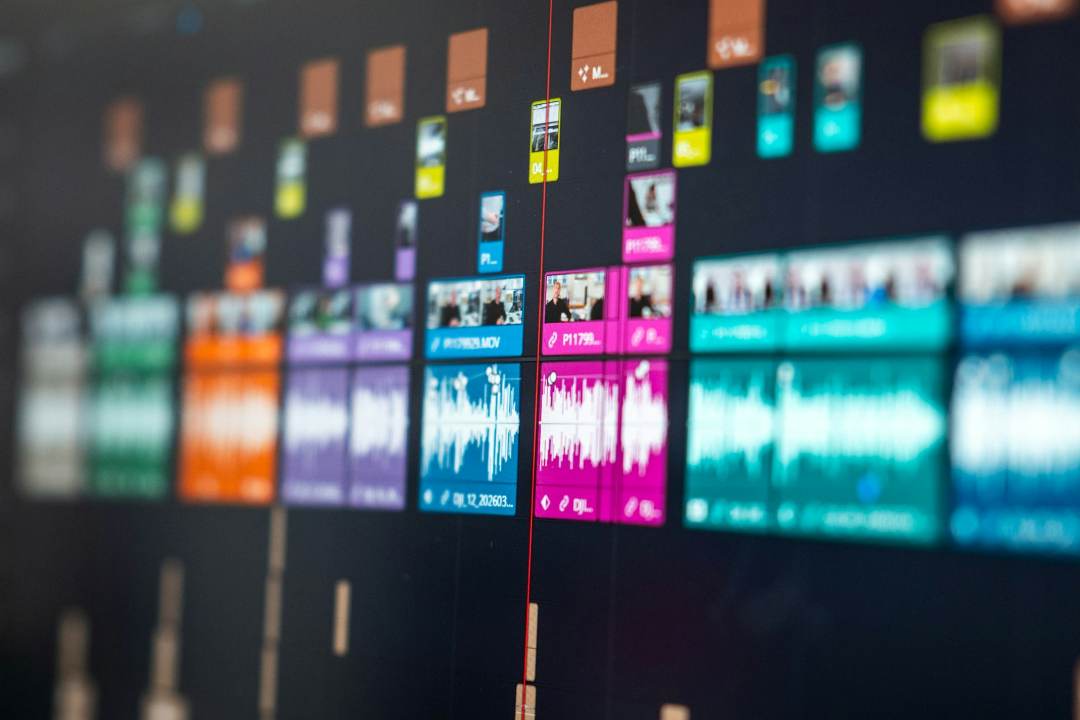
Fix: Treat AI-generated clips as B-roll or draft assets: 1. Trim awkward start and end frames 2. Color correct for consistency across clips 3. Add transitions between scenes 4. Sync audio separately—do not rely on AI-generated sound 5. Add captions, overlays, and branding in your video editor
AI handles generation. You handle finishing.
Mistake 10: Ignoring the 3-Second Rule for Social Media
You create a beautiful 30-second AI video. You upload it to Instagram Reels. Ninety percent of viewers scroll past in the first two seconds.
The problem: Social media algorithms and viewer behavior prioritize the first 3 seconds. If your video does not hook attention immediately, it fails regardless of quality.
Fix: Structure every social video with a hook-first approach: - Put the most visually striking moment in the first 3 seconds - Start with motion or unexpected visuals - Use text overlay to promise value: "This mistake costs you views" - Avoid slow fade-ins or ambient establishing shots
Generate your hook separately and place it first in editing.
Mistake 11: Not Testing Multiple Generations
You generate one clip, accept the result, and move on. Later you realize the composition is off or the motion is unnatural.
What you missed: AI video generation is probabilistic. The first output is rarely the best output.
Fix: Generate the same prompt 3-5 times: 1. Review all outputs 2. Select the best one 3. If none are usable, adjust the prompt and try again
Budget time for iteration. Professional results come from testing, not luck.
Mistake 12: Using AI-Generated Audio Without Checking Sync
Your video has AI-generated voiceover. The lips move out of sync with the words. Background music cuts off mid-note.
The issue: AI audio generation is improving, but sync and timing remain weak points. Generated audio often misaligns with visual motion.
Fix: Separate audio and video generation: - Generate video first - Add voiceover using dedicated AI voice tools or record your own - Sync audio manually in your video editor - Use royalty-free music instead of AI-generated soundtracks for reliability
Do not trust AI to handle audio-visual sync automatically in 2026.
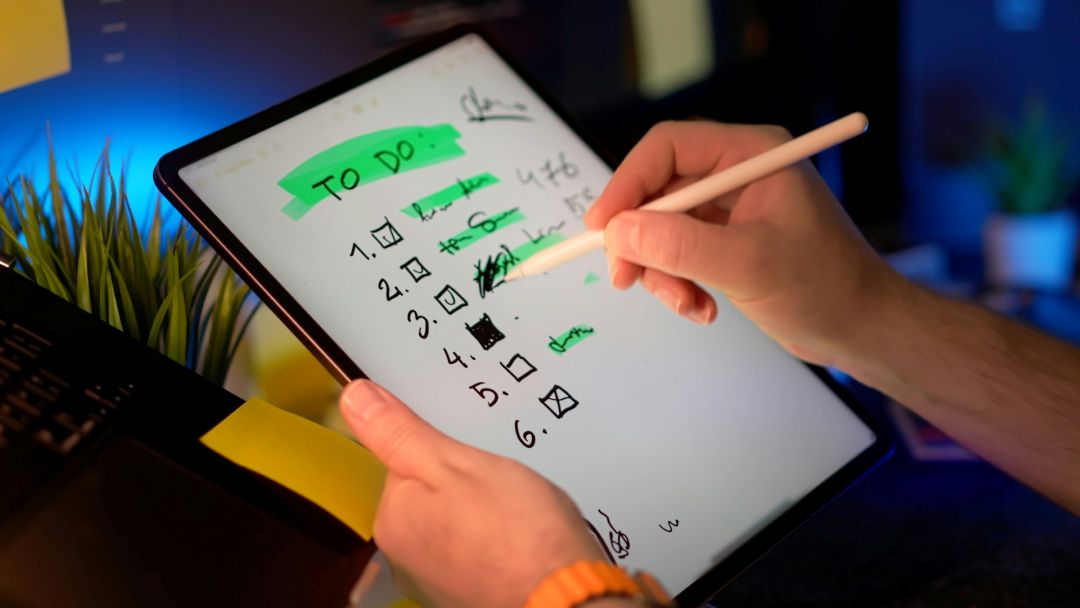
Quick Pre-Publish Checklist
Before you publish any AI-generated video, run this 30-second check:
- [ ] Aspect ratio matches platform (9:16 for Reels/Shorts, 16:9 for YouTube)
- [ ] Resolution is 1080p or higher
- [ ] First 3 seconds contain hook or striking visual
- [ ] Character appearance is consistent across clips (if applicable)
- [ ] No unwanted text overlays or artifacts
- [ ] Camera movement is smooth and intentional
- [ ] Audio is synced and does not cut off abruptly
- [ ] Trimmed awkward start and end frames
- [ ] Color corrected for consistency
- [ ] Ready for export in correct format (MP4, H.264)
Conclusion
Most AI video failures trace back to these twelve mistakes. The fixes are technical, not creative—better prompts, proper settings, and post-production discipline.
Start with one mistake at a time. Fix your prompt structure first, then resolution, then aspect ratio. Stack the fixes and your results improve.
Pixnovia handles resolution, aspect ratio, and technical optimization automatically.
Start Creating AI Videos Today
Join thousands of creators using Pixnovia to generate stunning AI videos
Try Pixnovia Free